An Introduction to Being a Power User
One of my favorite activities is to customize my computer and figure out how to be more proficient with my tools. Becoming a power user can significantly enhance your productivity and efficiency. Customizing your computer can give you a sense of uniqueness, and it can be pretty fun! This blog will be a brief road map on how to get started and provide inspiration for what you can do to be more efficient. I primarily use Linux, so most of the information will be based on that assumption. However, most of the information translates well onto macOS. Windows, on the other hand, is very different and a bit harder to work with (still worth exploring their equivalents, though). If you are looking for an organized course to learn some of these concepts, then I would highly suggest MIT's Missing Semester Course (the lectures from 2020).
Definitions: What is a Power User? What is Ricing?
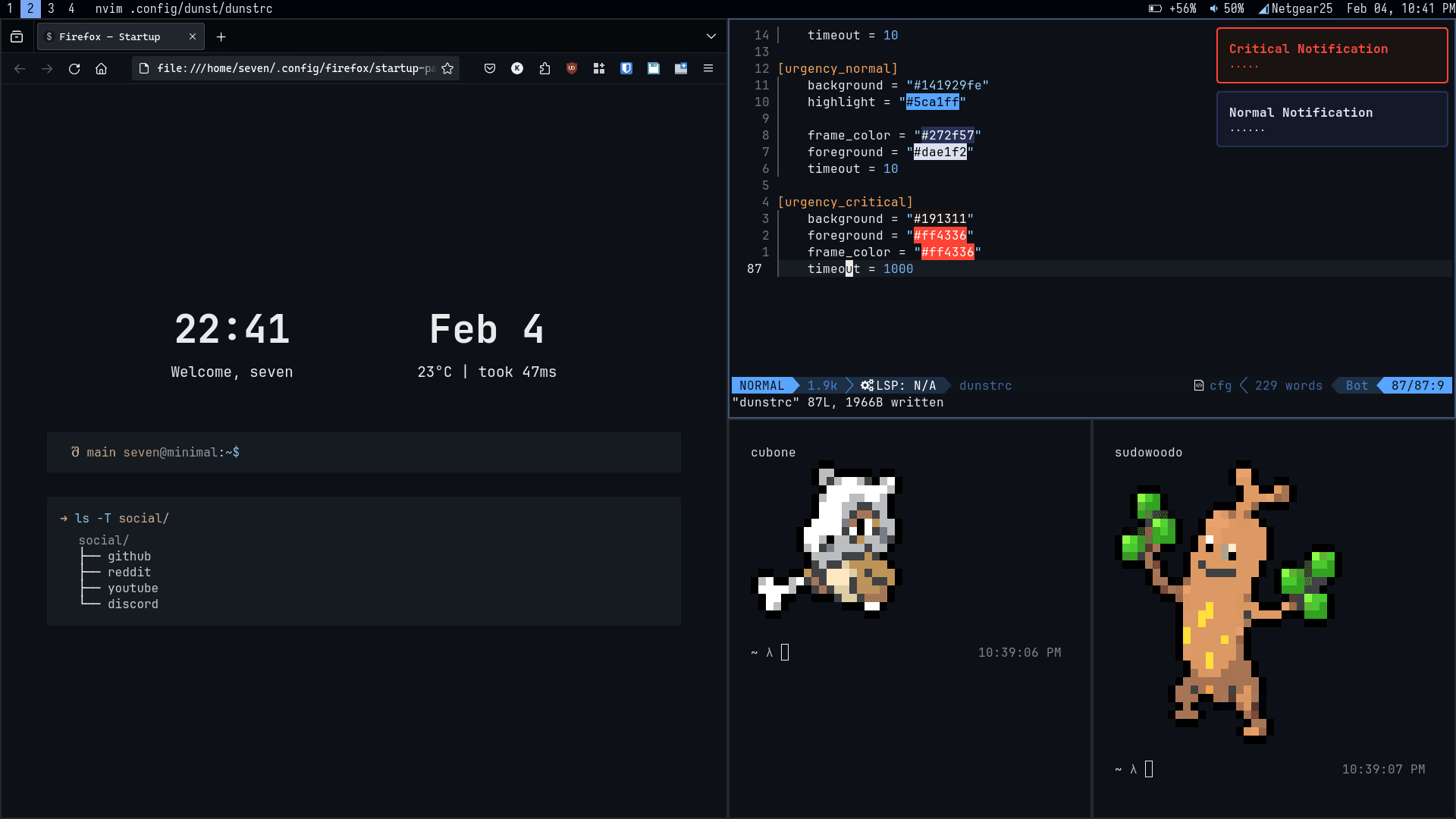
A power user is a somewhat vague term. Here, I'll use it to refer to someone who can operate a computer or software efficiently. Maybe they know any of the following: how to navigate different operating systems, how to use the terminal efficiently rather than using GUIs when appropriate, how to write scripts or commands to either automate tasks or drastically reduce the time, and many other things. Overall, they know how software is designed and how to get the best use out of it. Generally, proficiency in programming is not a requirement, but it can help a lot.
Using this term may sound a bit snobby, and I wish there were a better colloquial term for it. However, I think it's a useful term to describe the skill set.
Ricing is a term that originated from the Unix community, which refers to customizing your computer's appearance and behavior. It is often associated with customizing the look and feel of your desktop environment, terminal, or other software. However, be careful not to get too carried away with it, as it can easily become time-consuming and unproductive.
This guide will focus more on being a power user and being efficient rather than making your computer look good.
Keybindings
The first step to becoming a power user is to learn and master keybindings (and subsequently, be a fast typer). Keybindings are keyboard shortcuts that allow you to perform actions without using the mouse. Almost all software has keybindings, and learning them can significantly increase your productivity.
Learn the keybindings for your browser, text editor, terminal, and other software you use frequently. Of course, a lot of applications differ in what keybindings they use, but luckily, a lot of them are similar. If you use a program frequently, you'll pick up the keybindings quickly. I recommend starting by learning the keybindings for your operating system, then learning your browser, and finally learning other software you frequently use. Here are some common keybindings; however, it's up to you to learn more!
General:
- ctrl + c - Copy
- ctrl + v - Paste
- ctrl + x - Cut
- ctrl + z - Undo
- ctrl + shift + z - Redo
- ctrl + s - Save
- ctrl + a - Select all
Browser:
- ctrl + t - Open a new tab
- ctrl + w - Close the current tab
- ctrl + r - Reload the page
Vim (A command-line modal text editor):
- i - Enter insert mode
- esc - Exit insert mode
- : - Enter command mode
- dd - Delete the current line
- yy - Copy the current line
- p - Paste the copied line
When you start wanting to make your own keybindings or change existing ones, there are several programs to help with this. Generally, your desktop environment or tiling window manager will have some way to change keybindings. You can also abstract away keybindings to a program that runs in the background and listens for key presses. On Windows, you can use a program like AutoHotkey. On macOS, you can use a program like Karabiner-Elements. On Linux, you can use something like xbindkeys or sxkhd (Simple X hotkey daemon).
Terminals, Shells, and Commands
The terminal is a powerful tool that allows you to interact with your computer using text commands. It is a wrapper program for the shell, which is the command-line interpreter that processes your commands. The terminal is often faster and more efficient than using a graphical user interface (GUI). I'd say mastering the terminal is the most important step to becoming a power user.
Common tasks such as moving files, searching for files, and installing software can be done more efficiently using the terminal. You likely already have a terminal installed on your computer, such as cmd on Windows, Terminal on macOS, or gnome-terminal on Ubuntu Linux. You will probably be fine using the default terminal, but I'd recommend using a terminal emulator such as Alacritty or Kitty for a better experience.
Your shell is the program that interprets your commands. The most common shells are bash and zsh.
Your task for this section is to learn how to navigate the terminal, learn some basic commands, and learn how to use the shell. Here are some common commands (only on Unix systems):
ls- List files in the current directorycd- Change directorypwd- Print working directorymkdir- Make a directoryrm- Remove a filecat- Concatenate files and print on the standard output
Try using the terminal for your daily tasks, and when you run into a problem or don't know how to do something, simply search for it. You'll learn a lot faster this way.
Text Editors
A text editor is a program that allows you to create and edit text files. Text editors are often used by programmers to write code, but they can also be used for taking notes, writing blog posts, and more.
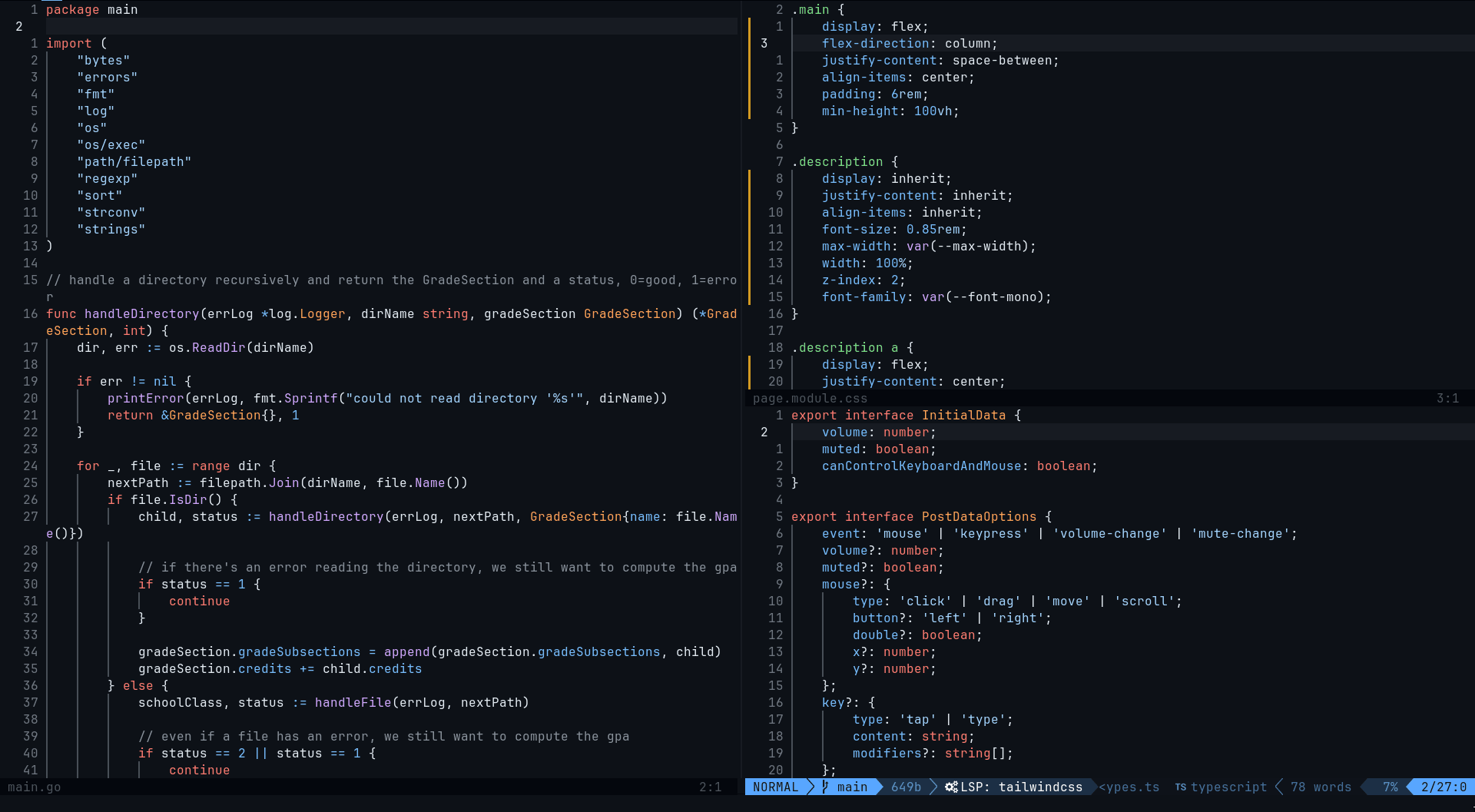
You likely have already used a GUI-based text editor, such as Notepad, Visual Studio Code, or Sublime Text. However, modal-based text editors are also something worth looking into. The most popular modal-based text editor is Vim. In Vim, when you type a character, it doesn't necessarily translate to a character being written in your document. Instead, you have these modes: insert, normal, and visual. This allows you to do things like move around without using the arrow keys, delete a word, or copy a line without using the mouse. The main idea is that you spend much more time editing and navigating text than writing it. Learning it will help you become more efficient and help you understand more in-depth how your editors work. It is certainly a steep learning curve, but it is incredibly powerful. Even if you don't end up wanting to use the editor fully, you can still use the keybindings and concepts in other editors.
There are other editors that follow this modal editing style, such as Emacs, Kakoune, and Neovim. I would recommend using Neovim which is a fork of Vim that is more actively developed.
Tiling Window Managers
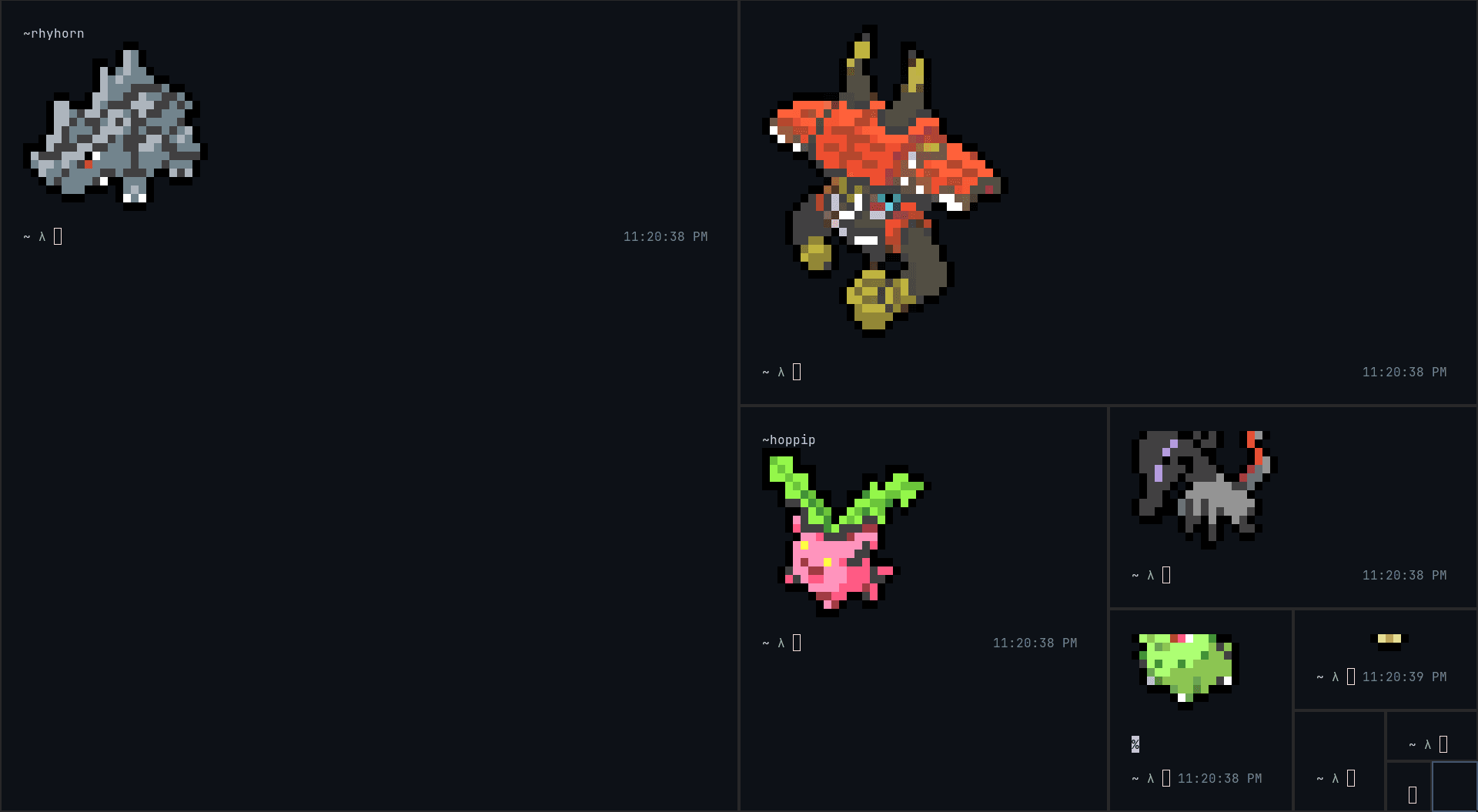
The next thing to learn is how to use a tiling window manager. A tiling window manager is a window manager that arranges windows in a non-overlapping way. This means that windows are automatically resized and positioned to fill the screen without any gaps. On the other hand, floating window managers allow windows to overlap and be placed anywhere on the screen.
Tiling window managers make full (I wouldn't necessarily say "best") use of your screen real estate and allow you to see all your windows at once. The idea is that if you have one window, it will take up the whole screen, if you have two windows, they will each take up half the screen, and so on. Of course, you can resize the windows to your liking. How the windows are arranged is dependent on the layout you are using. The most common layout is "master/stack," but other common ones are "spiral", "max", etc.
On Linux, tiling window managers replace desktop environments such as GNOME, and as such, you need to reimplement some of the features that desktop environments provide. This includes things like notifications, status bars, file browsers, display managers, etc.
On Linux, I personally use i3 as my tiling window manager, as it is certainly one of the easiest to get started with. There are many others you might enjoy, like awesome, xmonad, or bspwm. If you are on macOS, you can use yabai.
I haven't experimented too much with different tiling window managers, but I can't imagine my experience would be too different. However, one downside of i3 is that you can't select a layout or have algorithmic placement of windows. To get around this, I use autotiling.
Status Bars
This one might be a bit more optional than the others. Status bars are programs that display information about your system, such as the time, date, battery percentage, open workspaces, and more. Most tiling window managers and desktop environments come with their own status bar, but you can also use a standalone status bar such as Polybar or eww.

Scripting & Miscellaneous
Now is the part where it's a bit more up to you. Whenever you run into a problem or a task that you do frequently, you can try to make a script for it. Of course, this means you will need to learn a scripting language and a programming language. I would learn bash for scripting and python for programming.
When making these tools, something that will often be helpful is a menu chooser. This is a program that will display a list of options and give you the output of the option you choose. This is often done with dmenu or rofi (rofi is a lot more than just a menu chooser, though). I use dmenu if I want my options to all be on one line, and rofi if I want them to be on multiple lines.

dmenu_run)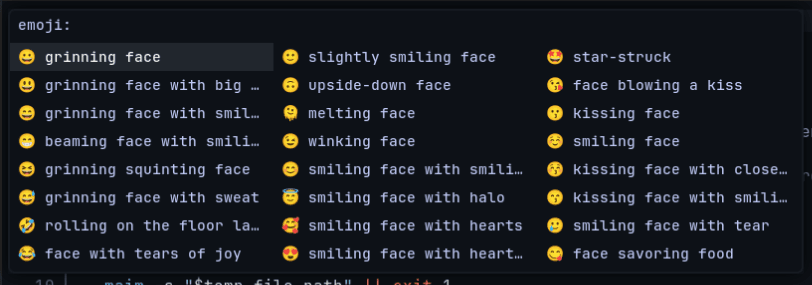
Here are some other things worth looking into (note, most of these are for X11, but you can also find equivalents for Wayland):
Display Managers: Display managers are what you see when you log in. You can customize these to your liking. The most common one is
lightdm. I personally use xinit/startx, which is a way to manually start your display server. Basically, instead of having the display manager load up on start, you simply log in to the computer through the terminal, which then runsstartx, which starts the window manager or desktop environment you have set up.Compositors: Compositors are programs that allow you to add effects to your windows (like animations and shadows). The most common one is
picom(formerly known ascompton).Notification Daemons: Notification daemons are programs that display notifications on your screen. They are often used in tiling window managers to display notifications. The most common one is
dunst.File Managers: File managers are programs that allow you to navigate your file system. The most common ones are
nautilus,nemo,dolphin, andthunar. I personally useranger, which is a terminal-based file manager.Screenshot Programs: Screenshots are programs that allow you to take screenshots. The most common ones are
scrotandmaim.Flameshotis also a common choice because of its extensive features and GUI. I personally usemaim.Terminal Multiplexers: Terminal multiplexers are programs that allow you to have multiple terminals in one. The most common ones are
tmuxandscreen. I personally usetmux.Music Players: Music players are programs that allow you to play music. The most common ones are
spotify,vlc, andmpv. If you are interested in a command-line music player, most people usempdwithncmpcpp. I personally have my own command-line setup with vlc.Image Viewers: Image viewers are programs that allow you to view images. The most common ones are
fehandsxiv. I personally usefehfor viewing images.PDF Viewers: PDF viewers are programs that allow you to view PDFs. The most common one is
zathura, which I use.
Unique Efficiencies
Most of the content above should get you started on your journey to becoming a power user. Generally, the improvements you make will be quite common, and there will be several resources online to help you. However, sometimes you might not be able to come up with a reasonable solution, and other times you might not even notice your workflow is inefficient until you see someone else's solution. A lot of my configurations and setups are somewhat common, but there are several projects and setups that I believe are unique and helpful to this group of people. I've written about most of them in my blog before, or I've created an open-source project that implements the idea. Feel free to check them out!
Conclusion
How I go about being more efficient is by constantly looking for ways to improve my workflow. Whenever I find myself doing something repetitively or something that takes a long time, I try to find a way to automate it or make it faster. This often involves writing scripts or finding new software that can help me. Sometimes, finding and building the solution takes more time than I saved, but more often than not, it is worth it in the long run.
This guide is just a starting point. There are many more things you can do with your computer to make it your own. If you are on Linux, I would recommend looking into the Arch Wiki for more information. It is a great resource for learning about Linux and Unix systems. I would also recommend looking into r/unixporn for inspiration on ricing.
← Back to home